In this guide
1. Prepare a script you can say comfortably
Before setting up the shot, read the draft out loud. Fix long sentences and any phrase you would not normally use. A script that feels comfortable to say leaves more of your attention available for the camera.
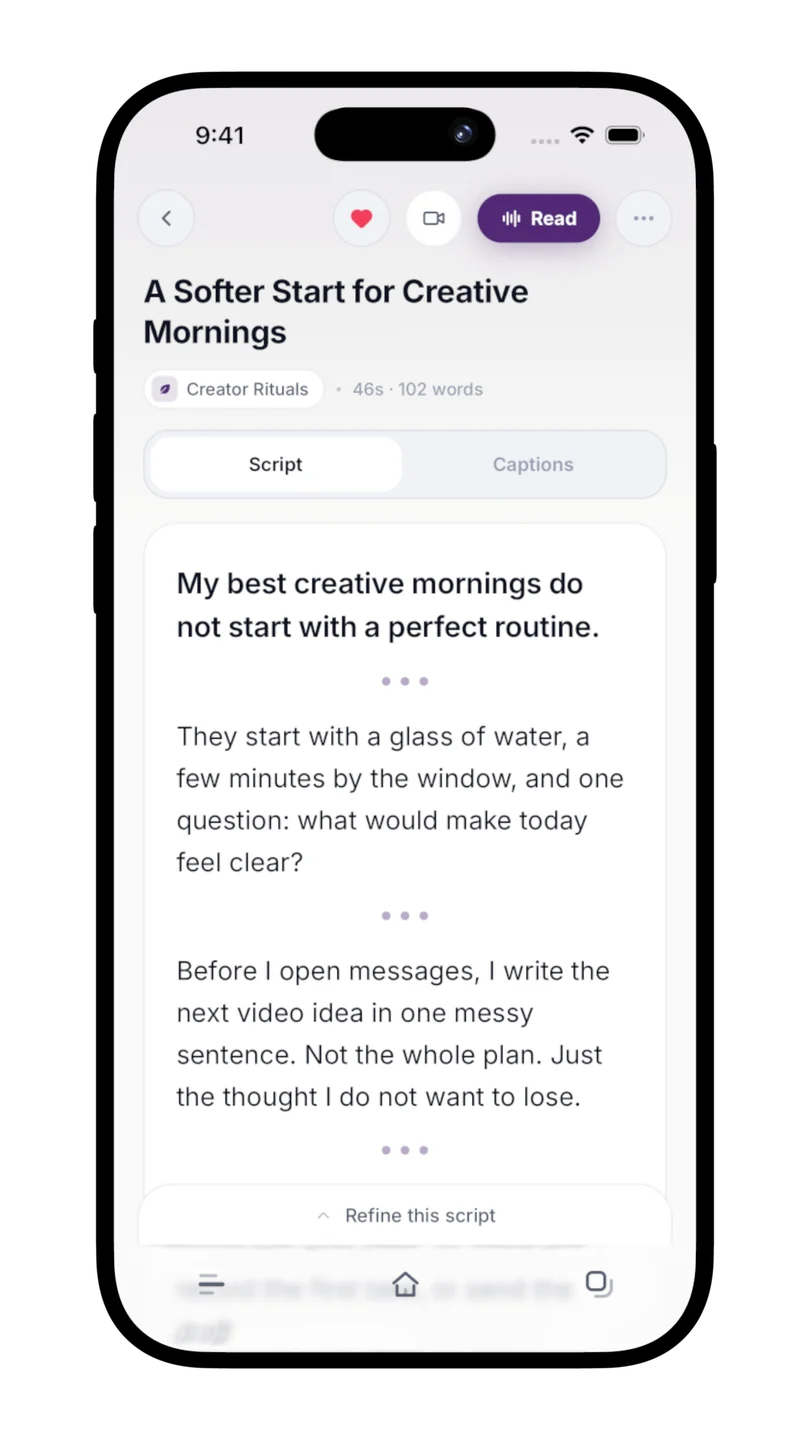
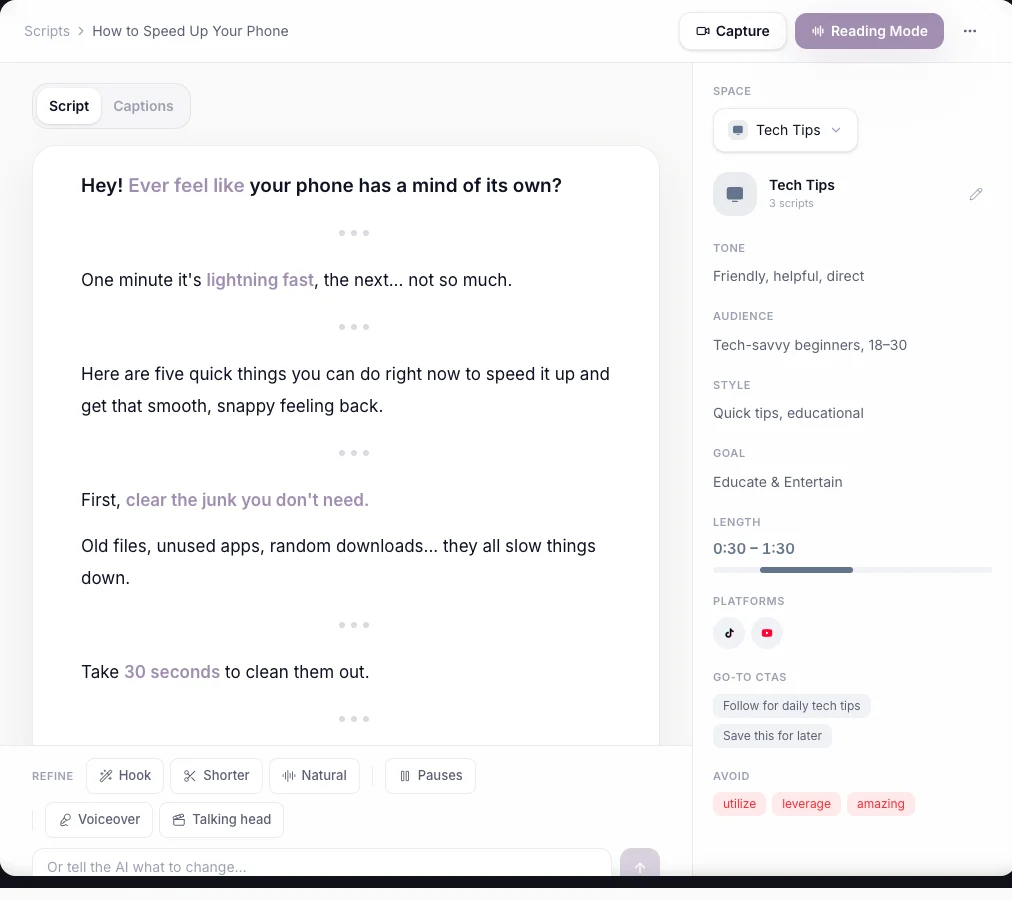
Use Reading Mode for a practice read if you want to work through the pace first. Then return to the script. Reading Mode rehearses the words; Capture records you with them in view.
For your first recording, choose a short script with one point. It is easier to learn the controls and check the result with a small take than with a long presentation.
2. Open Capture and allow access
From the finished script, choose the camera button on mobile or Capture on web. Allow camera and microphone access when prompted. Capture needs both to record your picture and your voice.
On a phone, support the device so it stays steady. On web, use a browser with camera access and place the camera close to the screen you are reading. A larger screen can help with the words, but make sure it does not pull your eyes far away from the lens.
If camera access is blocked, review the app or browser permission settings and reopen Capture. On web, the permission screen asks you to allow access and reload.
3. Set up a simple shot
Put the camera close to eye level, choose a background that does not distract from you, and look for light that makes your face easy to see. You can start with the setup you already have.
Listen for noise before recording. A fan, nearby traffic, or the distance from the microphone may matter more than another adjustment to the picture. Say a sentence from the position you will use and check a short recording.
Adjust the script text size and speed inside Capture before the take. Read a line comfortably without leaning forward. Keep your attention close to the lens, and give yourself enough room to breathe between thoughts.
4. Make a short test before the full take
Record the opening and one more line, then stop. Watch the test and listen to the sound. Is your face visible? Is your voice clear? Can you deliver the lines without rushing?
Change one thing if it needs work, then try again. If the sentence itself keeps causing trouble, return to the script and rewrite it. You do not need to force your delivery to fit awkward wording.
When the setup works, record the full script. If you lose your place, pause naturally and continue, or start another take. Capture again lets you record another attempt from the same script.
5. Keep the clean clip and edit it where you prefer
On mobile, the clean recording saves to your camera roll when photo access is allowed. On web, keep the downloaded recording on your device. Check that the file saved successfully before relying on it.
Capture can also back up takes so they are accessible across devices. Cloud backup has an allowance; if it is full or an upload fails, the local recording remains the copy to keep. Use the take history to review backed-up recordings.
Open the clean clip in your preferred editor for cuts, subtitles, music, or other finishing work. Scripts handles the words, rehearsal, and recording. Once you have a take you like, the next editing steps happen in the tools you already use.