In this guide
2. Ask for the series on Home
Use the same creation widget you use for a single script. State how many videos you want, the shared topic, the audience, and any points each video should cover. Select a Space first if the series should use its audience and voice settings.
Supply the facts or experiences you want included. Asking for a series does not give Scripts personal experiences to draw from. For instructional content, say what to explain and ask it not to invent a personal story.
Send the request and answer any clarification questions. Scripts prepares a content plan for you to review before it starts writing the scripts.
A series request you can adapt
Plan four 45-second talking-head videos for beginners filming at home. One video each on facing a window, recording a sound test, putting the camera at eye level, and rehearsing the opening. Each video should explain one practical action. Friendly and direct. Keep it instructional; do not invent personal experiences or results.
3. Check every direction in the plan
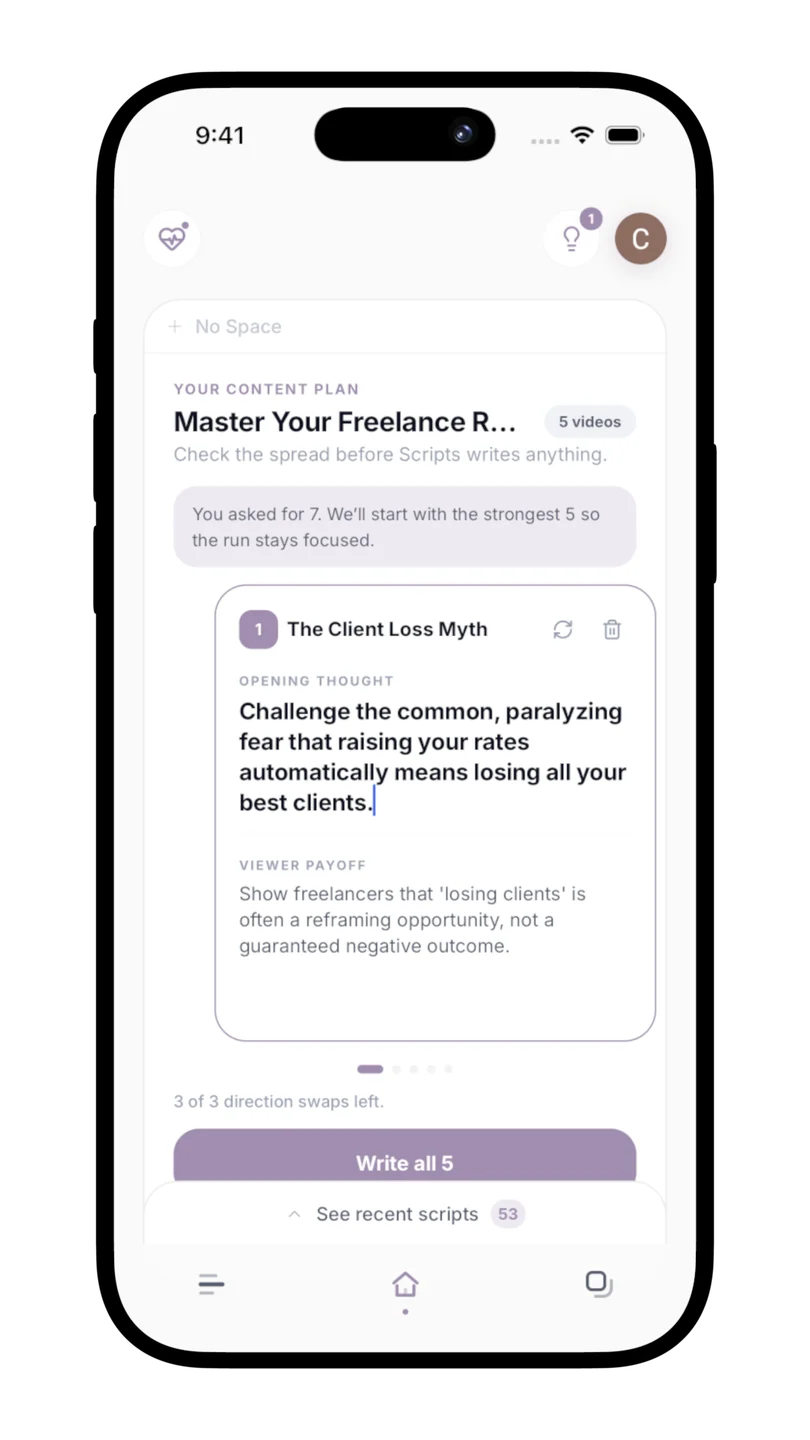
Swipe or scroll through the cards in Your content plan. Each card has a direction, an Opening thought, and a Viewer payoff. Read all of them before approving; the first card alone cannot tell you whether the series repeats itself.
The opening thought is what the video will say. The viewer payoff is what someone should understand or be able to do afterward. If two cards make the same point, edit one so it contributes something different.
You can edit the run title and the wording on each card directly. The refresh button finds another direction; there are three direction swaps across the whole plan, not three per video. After those are used, the wording remains editable.
Remove a direction with the bin button if you do not want it. A run needs at least two scripts. On web, Edit request takes you back to revise the brief if the whole plan needs a different direction.
4. Approve the plan and find the scripts
Choose Write all followed by the number of videos when the plan is ready. Scripts starts writing the group and opens it in the Scripts library. The cards in the plan are directions; this is the step that turns them into full drafts.
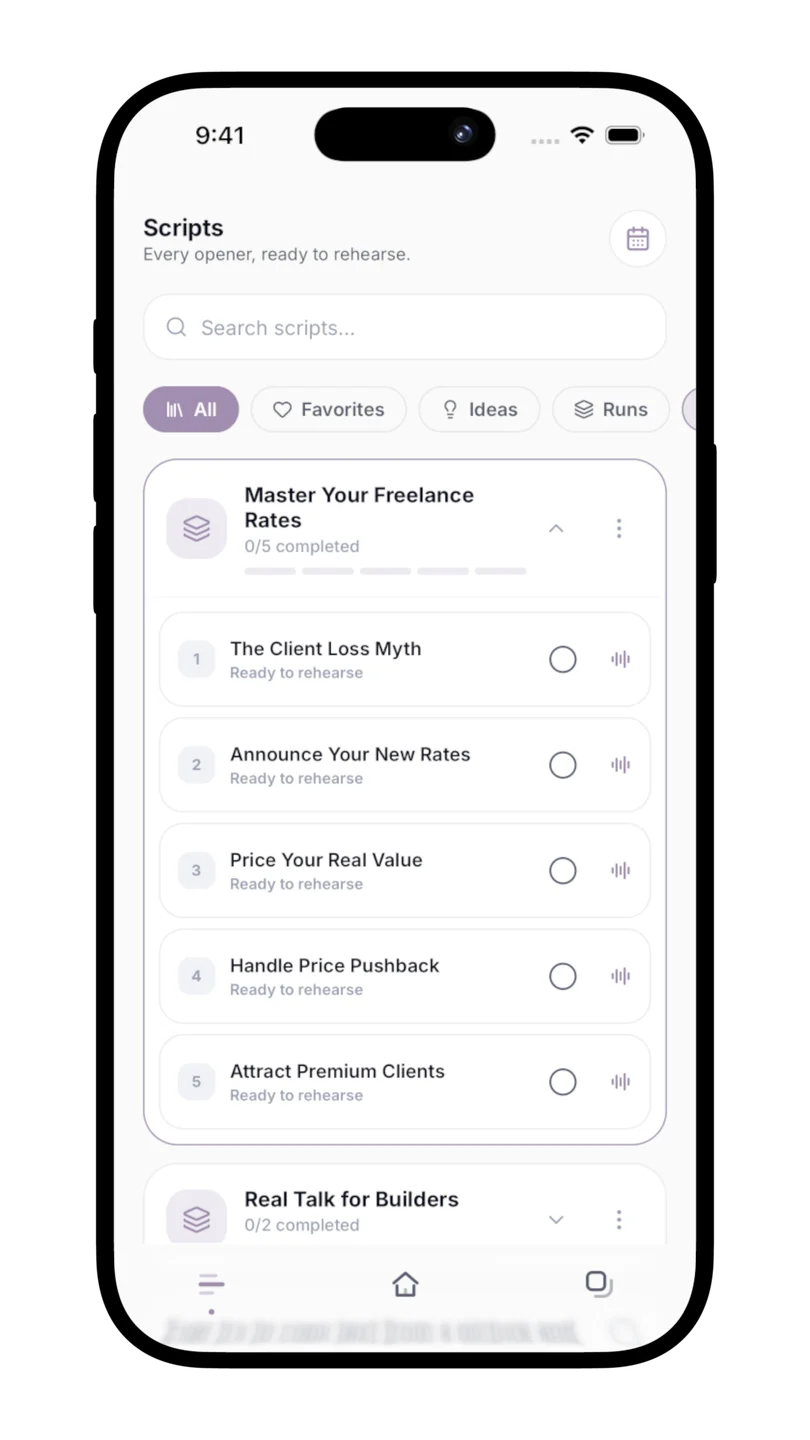
Use the Runs filter in Scripts to find the group again. Expand a run to see its individual scripts and their progress. Open a ready script to read and refine it just as you would a script created on its own.
If one script needs attention, use Retry for that item instead of creating the whole run again. If you stop a run that is still writing, scripts that have not started are stopped; drafts already written remain in your library.
5. Work through the drafts one at a time
Read each draft and check its facts before recording. A useful plan does not remove the need to review the finished wording. Refine long openings, replace phrases you would not say, and make sure each video stands on its own.
Rehearse a script in Reading Mode, then use Capture when you are ready to film. Mark the script completed in the library when it is done for your workflow. The completion count is not a count of drafts generated or videos automatically published.
Content Runs helps you plan and write several videos together. It does not post them or schedule publishing. Keep using your preferred tools for editing and publishing the clean clips.